Repairing an Epson HX-20 – Tape Drive & Printer

With the new battery in place it was time to test the main peripherals – being the cassette and the printer. The cassette drive is actually a plug in module – it could be replaced with a ROM cartridge, and as originally shipped with a simple blanking plate. The quality of the engineering is superb – it feels very solidly made and slots into place with a very positive action. I have a cassette supplied which contains the original logging program for the data logger complete with instructions.

As described above, the tape transport is entirely under computer control including winding, and there is even a digital tape counter accessible from BASIC. The ‘WIND’ command rewinds the tape, and I was pleased to find that sure enough it rewound to the beginning. The ‘LOAD’ command (as expected!) searches the tape for something to load so I typed ‘LOAD’… and nothing happened. No sign of life from the drive at all, and the computer reported a ‘IO error’.

It is very common for old cassette machines to have problems with their drivebelts as the rubber stiffens and perishes over time. However the belt was likely intact to some extent because the winding mechanism seemed to work. It clearly did need the drive stripping down and servicing, and this proved to be quite a task.

Looking round the ‘net it is possible to find some information on how to do this. Given the small scale it is unsurprisingly quite a fiddly job. I’ll make a list of useful HX-20 sites but I’d start with this excellent resource from Martin Hepperle, and specifically the ‘Tips and Tricks for the HX-20‘ PDF:

https://www.mh-aerotools.de/hp/hx-20/index.htm

There’s loads of useful stuff in here, including some advice on replacing the drive belt. There is also a huge stack of other manuals – including a massively detailed technical reference manual – here:

http://www.vintagecomputer.net/fjkraan/comp/hx20/doc/

The technical manual gives a very nice exploded diagram of the tape drive, and in conjunction with Martin’s guide tells you everything you need to know. However it is extremely fiddly. The drive itself is a modular unit which slides out (and I understand it originally shipped as an optional extra). There are a few screws to remove the outer shell, and then several more which hold the PCB to the back of the drive mechanism. Some of them have brass standoffs, and all of them are really small so great care is needed not to lose any.

One of the hardest things to do is separate the mechanism from the top shell – it’s not clear how to do it, and takes a lot of wiggling around with the door open to do it. The technical manual talks about removing the front of the tape door but I couldn’t see how to do it and after a lot of fiddling around it eventually came off. So I can’t really offer any advice other than to persevere!

One thing I did learn – do not under any circumstances remove the screw which forms part of the door release latch assembly. I did this thinking it would make things easier, and in doing so the tiny spring which reset the eject switch popped out. I spent a very long time trying to get it back in again… which was incredibly difficult to do. After countless unsuccessful attempts I was eventually able to do it although the spring ended up rather buckled in the attempt.

Once you have the mechanism out you need to unsolder a few wires from the motor, remove the tachometer cap and then finally you can unfold the mechanism and reveal the belt. I had got so absorbed in the process that I didn’t take many photos unfortunately but there are details in the guide linked to above.

To get the belt out, you have to remove another metal bar which sits across the mechanism. The one on mine was intact but had clearly hardened up and was very slack and clearly would not do a good job. However it did not explain why the drive was not working at all, as even a missing belt should still allow the mechanism and motor to start. The belt itself is 50mm in diameter (so about 160mm circumference) with a square cross section. I have a bag of belts of varying sizes so tried a few until I found one which fitted. They do need to be thin enough to pass underneath the tachometer cap so a bit of experimentation may be needed. The cross section should be anything between 0.8mm and 1.2mm square – mine was 1mm.

I then roughly reassembled the module and slotted it back in to see what else was wrong. It was clearly obvious that the real problem was that the tape head was not engaging, and so the computer was behaving as if no tape were loaded. The mechanism is circled on this picture, although here it is in the engaged position.

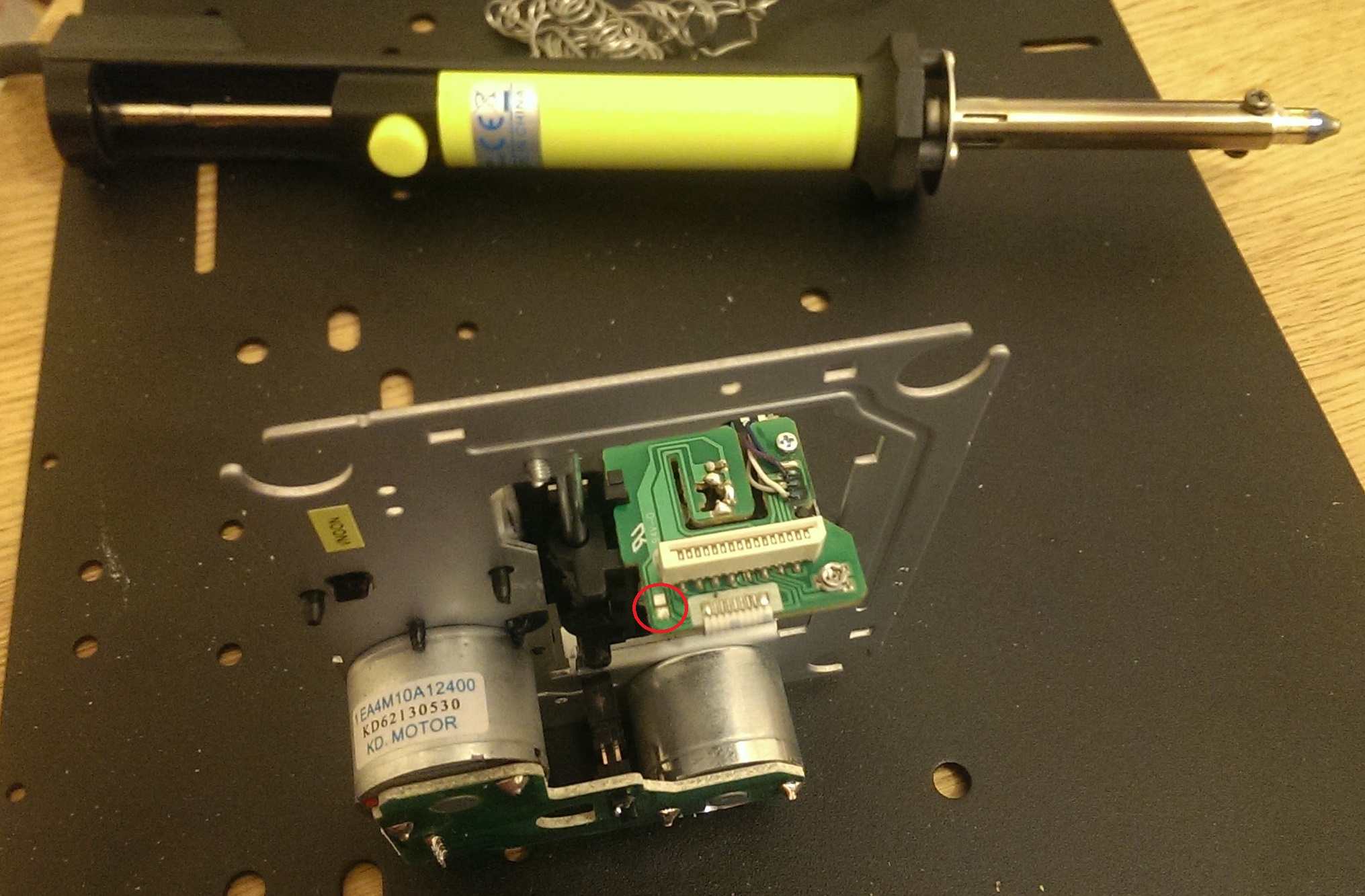
This mechanism is driven by a separate motor with a worm drive which moves the head in an out of position in a continuous loop. A sensor detects when it is in place which stops the motor. On initial inspection I could not see anything wrong. With long nose pliers I could turn the motor shaft and the mechanism worked smoothly. So the problem either lay with the motor itself or the logic driving it. To test this further I desoldered the wires from the motor (circled on the picture below) and used an external battery pack to see if I could get any life out it:

Initially it appeared completely dead, which was not good news. However, after a bit of fiddling around and without seemingly having done anything, it suddenly burst into life! I spent quite a few minutes watching the motor run smoothly and engaging and disengaging… quite hypnotic. I’m still not quite sure what made the difference, but I think the most likely thing is that the motor had seized through lack of use and a combination of moving the shaft manually and the external power source was enough to kick it into life.

It was then simply a matter of further testing. I reassembled the unit without the case, took a deep breath and…

Success!

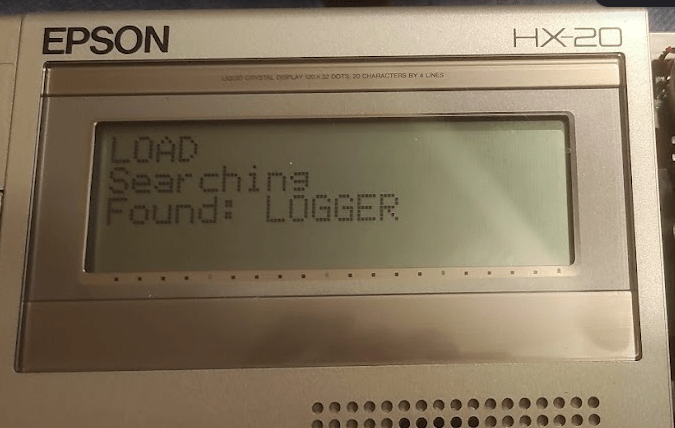
It was then a matter of reassembling properly and testing with an actual tape. My unit was was used with a data logger and came with the logging program on tape. It’s not been touched for many years, but I put the tape in typed the ‘LOAD’ command and to my great satisfaction it found and loaded the program:
The final piece of the puzzle was the printer. It was clearly working although the ribbon in it had completely disintegrated. Amazingly you can still buy brand new replacements as a similar mechanism is still used in some cash registers:
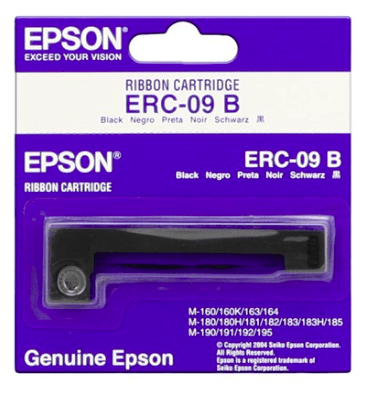
You can easily find these – either originals or cheap knock-offs – online very cheaply. On installing it, I was pleased to find that the printer did work but I had a lot of trouble with it apparently jamming. The paper would advance very slowly with constant beeping from the computer. This turned out to be simply due to the plastic gears binding due to a lack of lubrication, and a quick spray with a silicone lubricant (designed for plumbing, but great also for plastic gearing) left everything working smoothly. You can ‘screen dump’ direct to the printer or output to it in BASIC.

The quality is surprisingly good, and I have a box full of original branded Epson paper rolls although these also are widely available.

So after quite an interesting journey I now have a fully working HX-20. There is plenty of other stuff to explore – although the HX-20 scene is quite limited, it is still possible to find software from various sources which can be loaded through an external tape port. I would also really like to see what the data logger can do, will have to think up a suitable retro project for it. Also need to clean up the case a bit. It remains one of a very small group of computers which have printer, display and storage in a single unit. In fact the only other one I can think of is the much later Canon NoteJet / BubbleNote series of laptops

This whole thing has given me a taste for these quirky early portable computers, and I know I would have absolutely loved something like this back in the 80s. Watch this space for more adventures…

Repairing an Eq3 MAX Thermostat

I’ve written at some length about my use of MAX thermostats and most recently the sad news that the product line has been entirely canned. This has immediately set up a supply problem and I had great difficulty in getting hold of another when I added a radiator and I actually had to get one shipped in from a contact in Germany, When it arrived I tested in briefly and it powered up so put it on a shelf until I got round to fitting it.

Today was the day, and I was extremely dismayed to find that when I tried to install it, it immediately failed with an F1 error. The motor would run for a fraction of a second before stopping. The manual states that this is error relates to the motor running slowly.

I have stripped these down before, and the gearbox is a fairly simple mechanism but still has quite a few plastic cogs. To open the casing you need a small Torx T5 screwdriver with quite a long reach to get the four main screws out (under the battery cover). It’s quite awkward inside with the wires from the battery box and the motor, although you can lift the motor and gearbox out.

I had a look at the gears and they did move although it does take quite a lot of effort. However looking closely at it I could see some damage to a different set of wires that go from the board to the motor assembly. Inside there gearbox one of the cogs has four reflective dots on it and there is a light sensor in the housing. This is used to measure the speed of the motor, and it struck me that the most likely reason for the error was that it wasn’t reading anything from this sensor and thought the motor wasn’t moving at all.

As an aside, I also remove the PCB from the housing with the screen and the buttons because I thought it would make things easier – but my advice is, don’t do this! The screen is not fixed in and there is a sandwich of plastic and other bits which took me ages to get back together again.

The wires that were damages are part of a 3-way ribbon cable which connects pads on the board to the motor housing. This cable is very stiff and only just long enough and I couldn’t strip enough insulation off the broken end to reattach it. So I ended up removing the cable entirely and replacing it with new wires. The pads on both ends are very small and tricky to solder on to, and I struggled to clean then off. I also found that the unit wouldn’t boot if there was a short.

I used some solid cores out of an old Cat5 cable which were thin enough and easy to solder. Rather to my surprise I was finally able to do so and put it all back together again, and then it worked perfectly. So it’s definitely worth persevering with these, they aren’t hard to repair but the internal wiring is definitely a weak point.

Repairing a Kawai K1 synthesiser

I’ve always liked music and music tech, although I’m not really much of a musician myself. I’ve written before about repairing an old Casio keyboard rescued from a skip. I’ve started looking around recently at old, unregarded and (importantly!) cheap synths to play with. The classic 1980s ones like the Yamaha DX range are now really quite expensive (£500 or so for a decent one) making me regret not looking at this before given that a few years ago you could have got one for next to nothing. However trawling ebay I found someone locally selling a Kawai K1 untested reasonably cheaply so I bought it.

I’d not really heard of this one but it appears that it was quite popular back in the day and they sold a lot of them. They seem to have been in the doldrums for years but there does seem to be some interest again. There are a few interesting websites with more information:

https://www.musicradar.com/news/blast-from-the-past-kawai-k1

https://kawaik1.wordpress.com/

The one I got was in a pretty sorry state when I got (and not _quite_ as described by the seller either!)

There is some damage to the casing on the front at the right and the rightmost keys are slightly damaged. It’s a bit shabby all over with some dirty keys and needs a good clean. It came without a power supply although it’s a standard barrel connector and a 12V power supply (although ‘centre negative polarity).

I was pleased to find that it powered up without an issue, although on trying to play there were quite a few issues. Some of the piano keys didn’t work, none of the control buttons worked and the joystick didn’t seem to do anything. I had a strong suspicion that the internal battery had failed too.

So first job was to open it up and have a good look. The Kawai blog above has good advice on doing this, basically a matter of removing all the screws on the base of which there are several different kinds. There is a good account of it here:

https://kawaik1.wordpress.com/2019/05/16/dissassembling-the-k1/

Once I got inside there were a few broken bits of casing rattling around but in general not too much obvious damage:

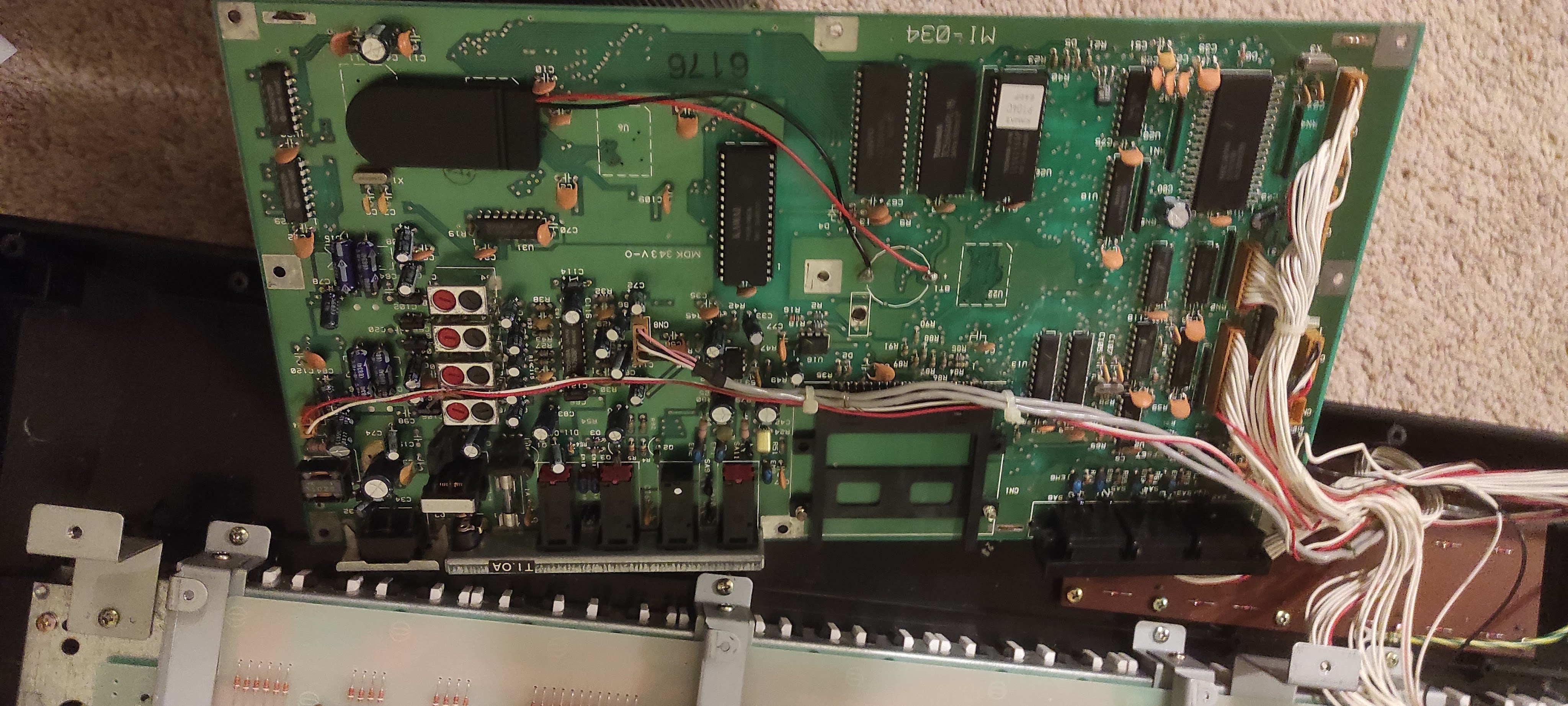
The main board has a copper sheet on the bottom, but you can get to the top of the board by unbolting the board and carefully flipping it over:

There’s nothing obviously wrong here other than a badly bodged backup battery install. It looks like someone has torn the straps off the old battery and put a new one in with sticky tape, but it’s not really worked. I could replace this with a proper tagged battery, but these are a bit of a fiddle and so instead I thought I’d use a battery holder. There seem to be quite a few of these out there now, and I found a lot of these out there:

They are very cheaply made, but let you install one or two CR2032 batteries in a case and solder the flying leads to the board. This should make it much easier to replace the battery in future should this ever be needed. So I cut down the old tags and soldered the wires on, fortunately the positive terminal was marked on the board. I stuck the holder to a convenient space on the board with some self-adhesive tape:

The next problem is the unresponsive piano keys and control buttons. For both of these it was simply a case of stripping everything down. These keys work by a rubber mat which pushes down on some PCB based contacts. I was able to unscrew the button board and pull the mat off, and clean the contacts up. It was the same approach for the piano keys, and the details are in the post linked to above. There was nothing obviously wrong with any of the contacts but there was a fair bit of fluff which I cleaned up. I had read on the internet somewhere that people had trouble with the copper sheet under the PCB so I took that off too although it didn’t make any different. However it gave me a chance to have a good look at the underside of the PCB which again looked fine.

There was also some damage to the top ‘C’ key and a stabilising post had snapped off. Unfortunately I broke this further trying to get it out and whilst the key still works it is a bit loose and gets stuck. However I can’t think I’ll have much occasion to use that particular key anyway.

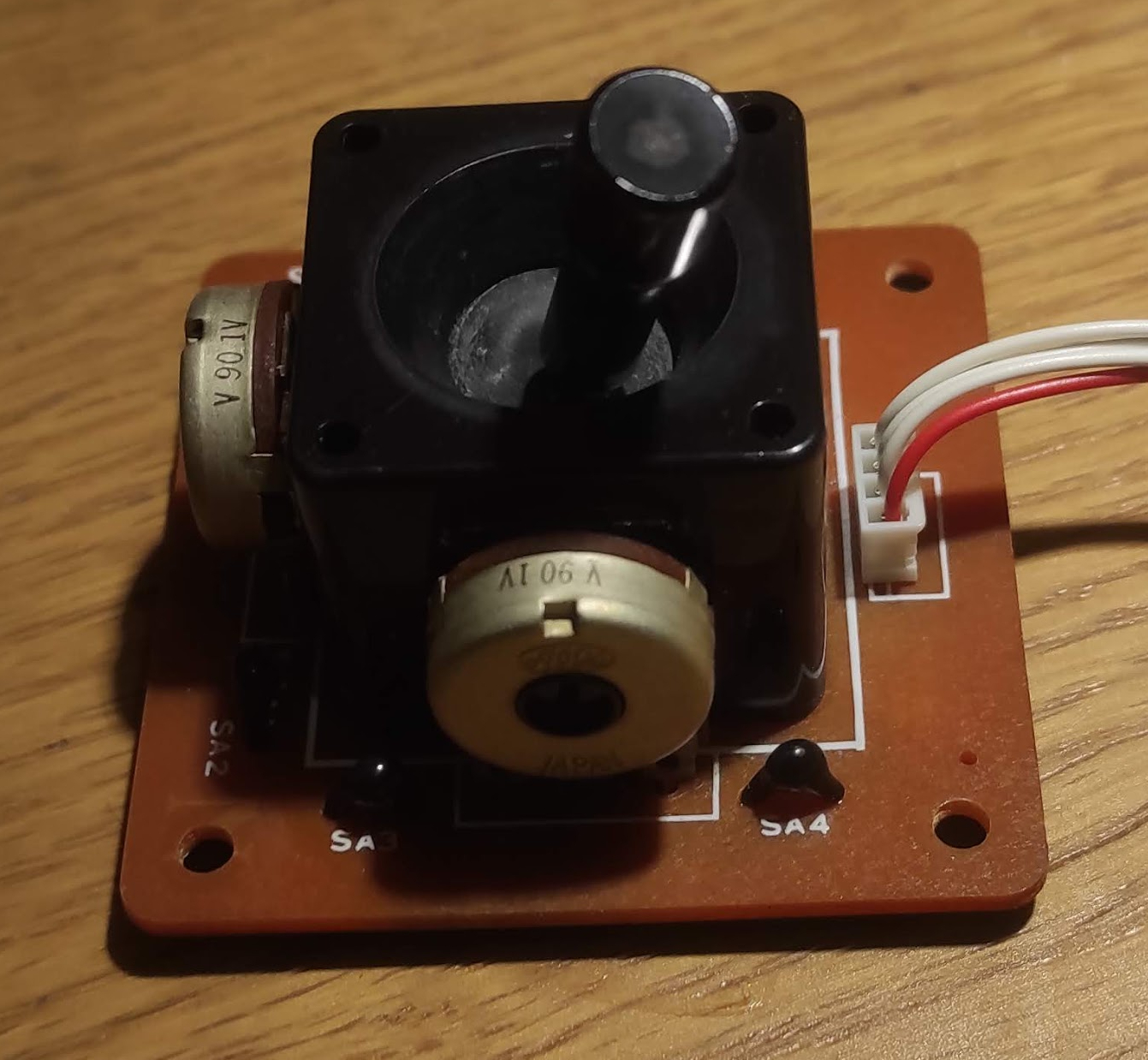
The final thing to look at it is the joystick. I’m not entirely sure how it is meant to work but it seems to be working reasonably well in the Y axis but not in the X axis. These joysticks are actually fairly simple devices with two potentiometers:

From a few measurements they seem to be fairly standard linear potentiometers tracking from 0 to 4.2k. There doesn’t seem to a big problem with them from measuring with the meter, and similarly the cabling etc also seems fine. However I’ve sprayed a liberal amount of switch cleaner on it, the connectors at the other end and the socket on the main board. After leaving it overnight to let the cleaner soak in I gave it a good wiggle around in both axes before refitting it.

Then it was simply a question of putting it all back together again and testing it. Somewhat to my surprise… basically everything worked! The keys all work, the control buttons work (although they do need firm pressure) and the joystick also works smoothly in both axes. So it’s rather a shame about the physical damage, it would be great to find a new casing from somewhere although that’s a bit of a long shot.
The backup battery is also working correctly, so the next thing to do is reload all the stock factory patches and get some more interesting sounds out of it so that’s for part 2.

Repairing a Dualshock 4 controller

In an earlier post I talked about work done repairing a Playstation 3 controller, but a couple of years down the line and an upgrade later I’m in a similar position with a PS4 controller aka a Dualshock 4.

This time the problem is with one of the small joysticks / analogue controllers. One of them was frequently getting stuck or becoming unresponsive. Unsurprisingly this is a common problem, and there is lots of information out there on this.

The sticks are made up of a mechanical centre which handles the movement and the push button, and two carbon ‘wipers’ which track the two axes of movement. Dismantling the controller is fairly easy (just a matter of removing the screws and teasing it apart) and then you are left with the main board:

The internals of a DS4 controller

You can see on the right the complete stick. On the left, you can see the two green sections (which contain the wipers) have been popped off the main body and bent back on their pins revealing the wipers (white). It seems you can bend these back and forth a good few times without them breaking but you do need to be careful.

I was able to buy complete replacement stick assemblies for a few pounds off eBay. The first time I did it I simply removed the white bodies and cleaned out the inside with switch cleaner before replacing with new ones. This worked for a while, but then I hit problems again.

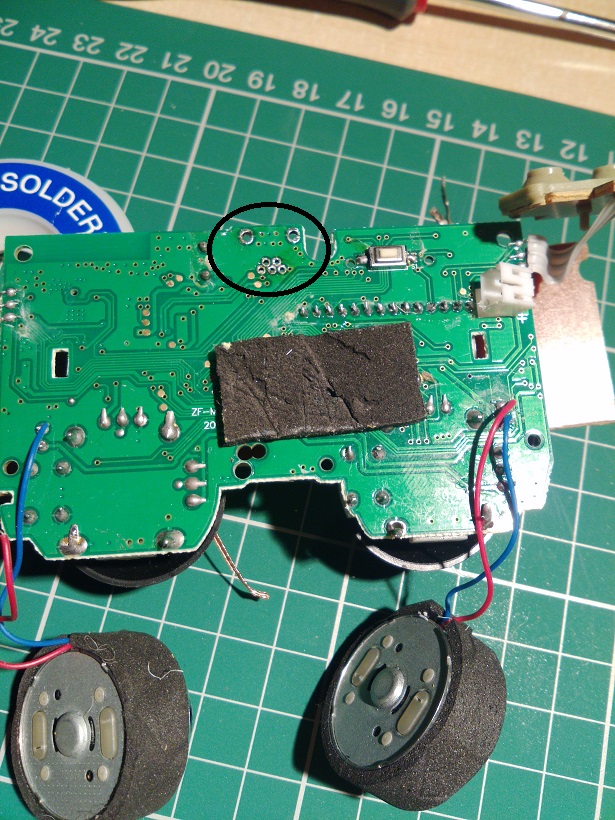
This time I decided to replace the green units completely. This should have been easy – simply a matter of desoldering three joints and replacing with a new one. However for some reason this proved extremely difficult. I just couldn’t get the solder to melt cleanly, and the pins eventually broke off in the holes and it proved a right pain to suck what was left out and clean up the holes. Somehow or other I eventually managed it and was able to solder in a new one, but it was so awkward I left the other one in place. By good fortune the one I started with was the one with the fault.

After getting it back together again everything seemed to work except the controller would not charge. I went back over the board and scraped off a few stray blobs of solder and after that it seemed to work correctly again.

So whilst these controllers are repairable it’s a fiddly job. You probably need a professional solder sucker to do it, I was using a good iron but only a cheap manual spring loaded sucker which wasn’t up to it.

I might have been unlucky… but at least now I have a working controller again! They remain really quite expensive to buy.

Repairing a Casiotone 101 synthesiser

As I’ve mentioned in previous posts I am interested in sound engineering and technology, and I love all kinds of music tech although this far outstrips my musical ability. So I’m keen to take any opportunity to get hold of something interesting, even though this often involves working out what to do with it later. I have acquired a number of interesting items this way, some of which I have kept and some I sold on. I still have a Casio VL-Tone VL-1 and I also had a boxed Casio SK-1 although I did sell this one on.

I was at our local rubbish dump the other day, and out of the corner of my eye I saw someone with an obviously old and classic looking synthesiser in the back of the car which was clearly heading for the ‘electrical’ skip. It turned out that this had recently “gone bang” and had been left out in the rain for a few days. The owner was quite happy for me to take it off his hands. On closer examination I found that I had scored a Casiotone CT-101:

casio_ct101

I’ve found a few references to this online which are mostly fairly derogatory, and whilst I suppose this is nothing like a Fairlight or even a DX-7 it is still an interesting bit of history, and from a similar era. It dates back to 1981 and must be one of Casio’s first attempts at a professional grade musical instrument. You can see the legacy of the 1970s era ‘home organ’ with the large multi-coloured controls and woodgrain finish. However the sounds are beginning to make the transition from organs to a classic 1980s style synth.

First impressions on getting it home were positive – it’s really well built with a solid wooden case, metal panels and very chunky controls and jack sockets on the back. Unfortunately there is evidence of water damage – mostly to one of wooden end pieces which are chipboard and have absorbed a lot of water leading to swelling and cracking. This is a real shame because this is obviously recent and the rest of it is in good shape.

Given this history of it going bang I didn’t try plugging it but stripped it down to find the problem. The obvious place to start is the power supply, and I was hoping to find a fairly simply fault.

IMG_20170924_225851

The internal construction is again very well done and surprising simple. The wooden casing is very solid and the PCBs are slotted in to small guides with lots of discrete wiring. There is lots of room inside to work and it’s easy to find your way around. There are a lot of screws to remove at the back and underneath, and the keyboard itself plugs in via a ribbon cable which you can pull out gently from the PCB connector.

img_20170924_231731.jpg

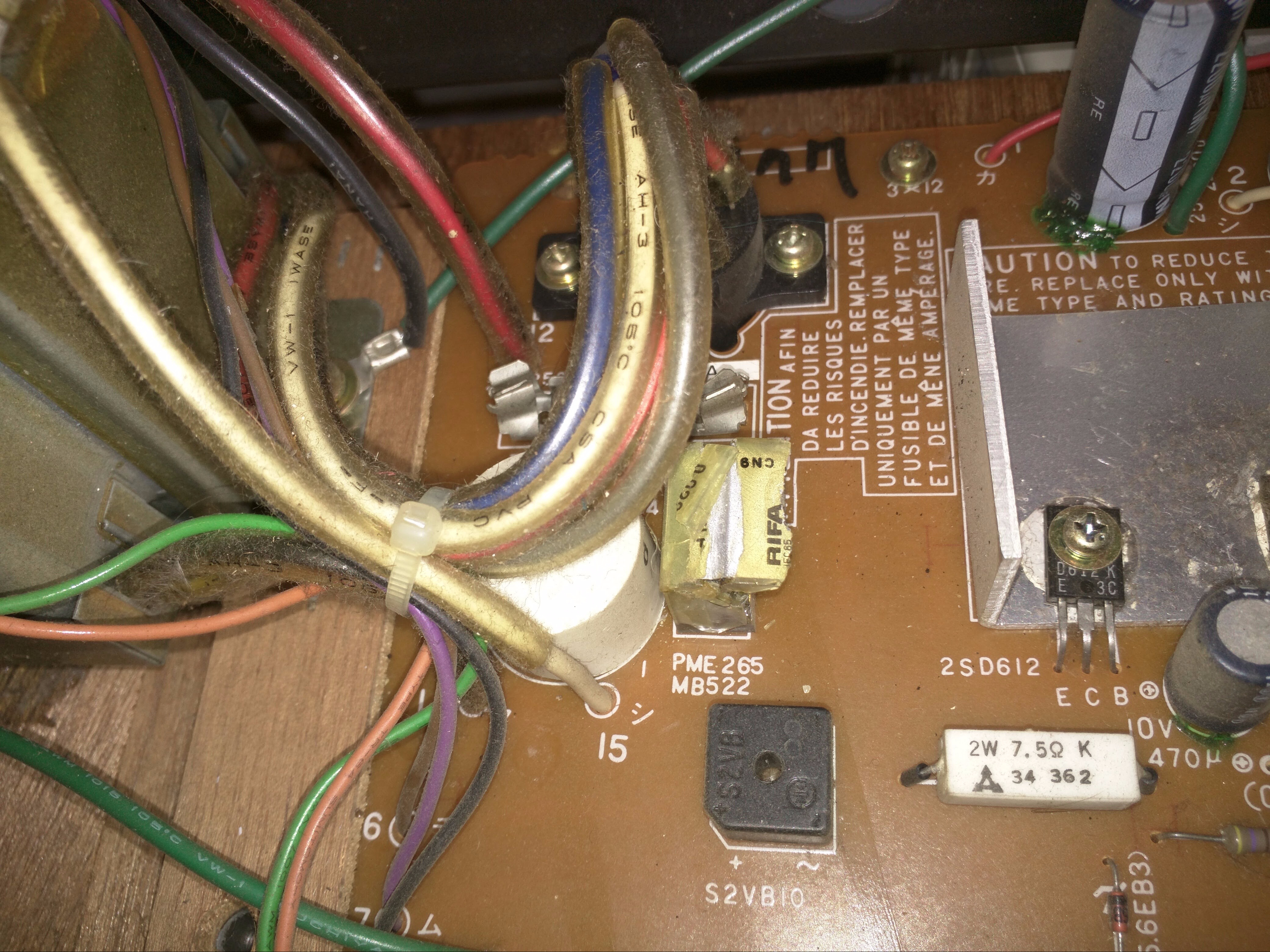
A close look at the power supply PSU quickly revealed this:

IMG_20170924_231749

Most of it looks good but this component (labelled PME 265) has clearly failed. There were bits of it all over the inside of the case, and there was no sign of any other damage anywhere. The damage to the component made it quite hard to see exactly what it was, but after gathering together the broken bits and with a bit of searching around, I found it was a Rifa PME 265 0.02uF capacitor. I think these are used for smoothing / interference suppression in the mains supply.

This specific part is no longer made but a newer version (PME 271) is readily available on ebay. I was able to find a replacement (a PME271) for less than £3. I was surprised by the capacitance rating though, I’ve never seen them measured in Nf before:

rifa

The new part is almost identical in size and shape to the old one, and the manufacturer is the same. Replacing it was very easy, just a few screws to release the PCB and I was able to replace it in situ without removing any of the wires by twisting it around and resoldering it. This is the old and new part side by side. No prizes for guessing which is which!

IMG_20170929_182708.jpg

Then it was simply a matter of reassembling and testing.

Then comes the moment of truth… and success! No bangs or smoke, and it works perfectly. I absolutely love the chunky controls (orange and blue toggles and press buttons as seen on the photo above) and the sound is very reminiscent of the early 80s. Now need to think of something to do with it… although looks great in my ‘home studio’!

IMG_20171008_222409.jpg

Repairing a Spirit Folio SX rack mixer

I’ve written before about my interest in sound equipment and engineering, which mostly relates to work at my church. As part of this I do general maintenance on the equipment and where possible do repairs to keep it all working. Given the cost of pro-audio gear this is generally cost-effective and also it’s satisfying to keep stuff working rather than buying new.

We have a mobile rig and part of this is a fairly old Spirit Folio SX rack mounted mixer. The one we have at the moment looks like this:

Soundcraft Folio SX labricox images

It’s not quite the same as ours has rack ears but the principle is the same. One of the main problems with these is the power connector, which because it is a rack mount is on the underside of the desk. It is a small proprietary plastic connector which looks like this:

It’s small, flimsy and easily broken. There are three pins because the power supply is a little unusual, being 2 17V AC lines with a 0V in the middle. I’m not entirely sure why it needs this, possibly something to do with the phantom power (which is 48V) used to power stage boxes and certain types of microphone.

When I was given the desk to look at the power was flickering on and off and it was immediately obvious that the power plug was loose in the socket, wobbling around all over the place. There was a small catch on the top of it and when I tried to move it it broke off in my hand. So the first step was to replace the power connection.

A lot of other people out there seem to have had very similar problems and there are a lot of people on various forums complaining about the same thing. There are a number of ideas, including removing the connector altogether and wiring the power supply straight in as a captive lead. Other people have used various types of XLR connector. We have loads of these lying around, but I thought it was better to avoid using these in case someone accidentally plugged a microphone into the power supply!

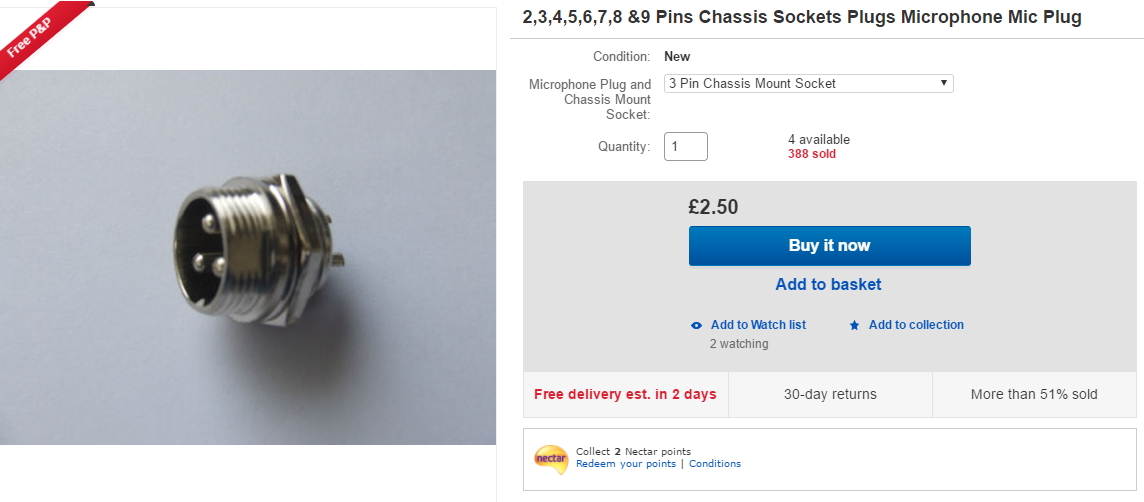
I finally settled on a locking 3 pin microphone connector, as seen on aircraft and various amateur radio equipment (another interest for another post).

To make it a neat job I decided to bolt a suitable socket to the bottom of the desk in place of the existing one. The connectors themselves are easily available on ebay:

connectors

The socket needs a 15mm hole which is too big for regular drill bits (the largest I have is 13mm) so I needed a suitable hole saw. Once again there was a wide choice on ebay and I found this for the bargain price of £2.79:

Image result for 15mm hole saw

Great service as usual from ebay traders and they were delivered quickly. The hole saw is from a Chinese manufacturer but I was impressed with the quality of it.

The bottom of the desk is a steel panel held on by a load of screws but fortunately there is quite a lot of space between the panel and the circuit board underneath. There is plenty of space to fit the new socket and connect the wires up without it fouling the board underneath.

First step was to remove the old socket which simply pulled out, and cutting the wires. Then I offered up the socket roughly to where I wanted and made sure that there was space to connect it up. Drilling the hole with the new cutter was pretty easy – I drilled a pilot hole first, and then used the cutter with a block of wood underneath. It did a great job and cut straight through leaving a very clean hole.

The new socket bolts through from the bottom with the supplied nut and washer. Then it is a matter of soldering the wires on to the connector. As above the power supply has two 17V AC rails and a ground connection. I traced these out using a meter and wired the plug and socket to match. The only problem was that the cable on the plug end was a bit thin for the cable clamp  so I had to bulk it up a bit with some insulating tape.


I also found that if I turned the panel around I could cover up the hole than the old power socket was in, which finished the job off nicely. After reassembling it, the power is now rock solid and various other odd problems have resolved.

You could use pretty much any connector to do this but this one was good because it was cheap and the locking mechanism made it very unlikely to fall out. I’d definitely recommend this as a modification as the original connector is a poor design and I’m not surprised that others have had problems with it.

Repairing a Roboquad

I’ve always been interested in robots, and in recent years some of the stuff available as toys has been really interesting. One of the main players is Wowwee who have over the years produced loads of interesting stuff, perhaps most famously the Robosapien which has been through several versions over the years. However they have done others too. I bought a Roboquad off ebay a few years ago:


Roboquad

This is a very clever design which uses only four motors (one per leg) to move around using crab-style walk. The head and neck is also articulated, and it has light & IR sensors in the eyes. There are loads of programming options and for a toy it’s quite advanced.

It’s been put away for a few years, and when I got it out again I found that because I’d used cheap batteries in the remote control (never a good idea) they had leaked acid everywhere and completely rotted through the springs and contacts completely destroying the battery compartment. To make matters worse when I put batteries in the robot itself it was completely dead and didn’t power up.

So before throwing it out I decided to investigate further. Unfortunately given that this is now quite old a lot of the info about them is hidden away in old forums but I was able to find a basic disassembly guide.

You have to start by turning it over and removing all the screws in sight, including one in each corner which is hidden under the leg. Once you done this you can separate the top and bottom, but you need to be careful to unplug the cables which connect the sensors from the head to the main board.

Given that it was completely dead, I did a few tests to make sure that the voltage from the battery was getting through, which it was and there was nothing else obviously wrong. So the next step was to unplug all the connectors in sight and get the board itself out. You need to be quite careful doing this as there are lot of them and some of them are quite stiff, but with a bit of gentle pressure you can get them all out.

I had a good look at the board when out and there wasn’t anything obviously wrong with it. However what I have learned by now is that the most likely point of failure with modern electronics is the large discrete components like electrolytic capacitors. So I desoldered and removed the largest ones and replaced them with some new ones.

I wasn’t optimistic, but to my great surprise once I had reassembled it the robot now worked fine! It’s possible that it wasn’t the capacitors, and it might have simply been the act of disassembly and reseating all the connectors but either way I was pleased.

The next step was to fix the remote control. Whilst the battery springs were completely destroyed by the battery acid, the actual contacts themselves were OK. So I tried jamming the batteries in with some coils of unused solder as impromptu springs. This worked up to a point but it wasn’t reliable and I gave up. The only thing to do was replace the battery holder completely.

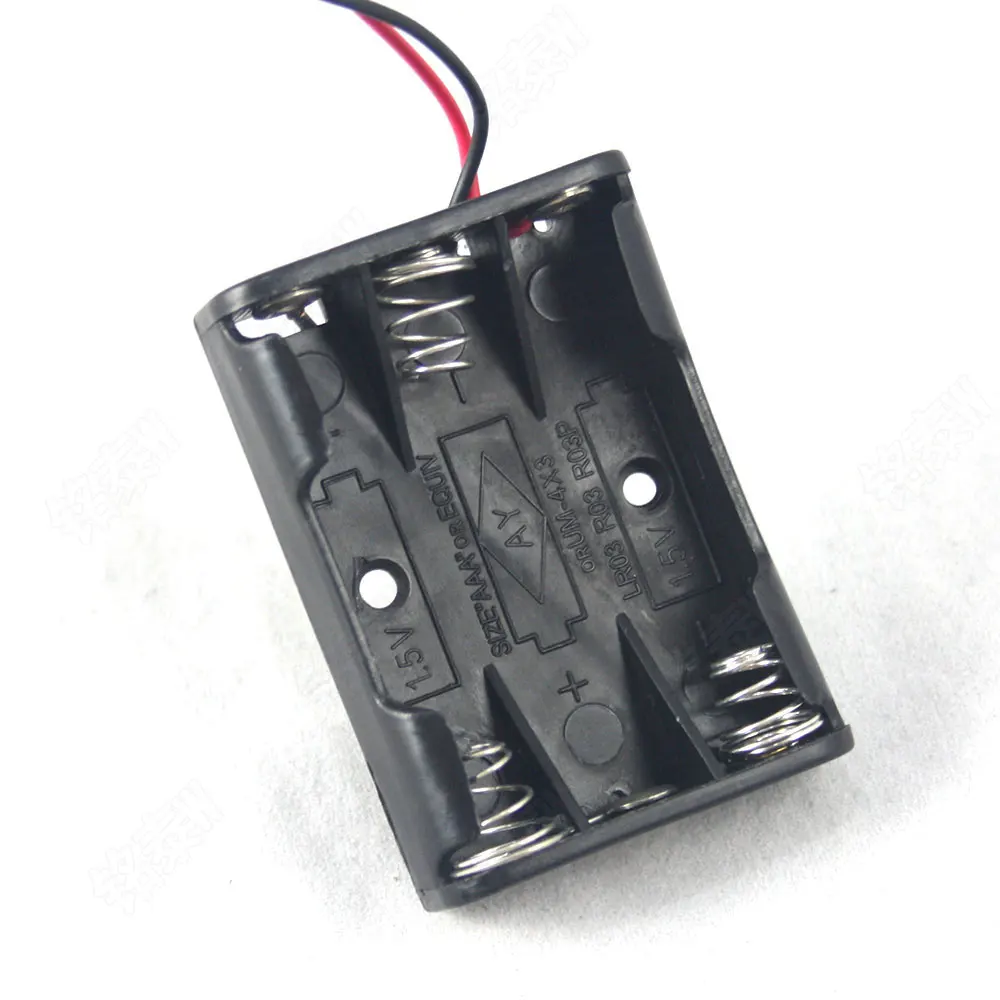
The remote uses 3 AAA batteries, and fortunately a suitable holder is easy to find on ebay and other sources:

Image result for 3x aaa battery holder

Then it was a matter of fitting it. The original remote had the battery holder moulded out of the plastic the back was made out of. It originally looked like this:

So what I had to do was break out the trusty Dremel and use it with a cutting wheel to remove the whole compartment. This turned out to be quite a job because the plastic was surprisingly thick in places. However eventually I was left with this:

The battery holder just fits through the hole, and the battery cover holds in in place perfectly. Having resoldered the wires I now have a working remote as well.

So all in all a good result – both robot and remote repaired and working for total expenditure of a few pounds. Hopefully this may help other in the same situation as I found it quite difficult to find much useful info given the age of these toys.

Repairing a (fake) PS3 Dualshock 3 controller

I’ve had a PlayStation 3 for a few years and although I don’t play it much it is a fun thing to have around. I got it second hand from CEX some years ago. The controller that came with it was a bit shabby but worked OK and has done for a while. I bought another one along the way.

Just recently one of them stopped charging. Reading around a bit it at first seemed like a battery fault so I ordered a new one. I consulted various guides (including ifixit) and it seemed a simple matter to replace. However, once I got it to bits I was surprised to find it looked rather different inside than the photos.It looked a lot more basic and quite a few bits were missing. Something like this:

I’ve borrowed this picture from another blog, but mine is exactly like the one on the left versus the other one I have which I think is a real one, which looks like the one on the right:

Image result for fake ps3 controller

It is obviously a fake and much more cheaply made that the real one. It seems that there is now a huge industry in faking these controllers, and given the PS3 is now discontinued it seems to be increasingly hard to buy one which is genuine. The packaging etc is all very closely copied and umpteen ebay or Amazon sellers say that they are ‘Official Genuine’ but it seems very likely that they aren’t.

Having said all this, in use the fake controller is (to me anyway) almost indistinguishable from the real one. Also I didn’t really want to have to pay out for a new one so I investigated further. Once I changed the battery, the fault remained. On plugging it in, the four red lights would flash for a few seconds and then go out. I had read elsewhere that the controllers do need a ‘proper’ USB connection to charge, and so I wondered whether the problem lay in the USB connection itself.

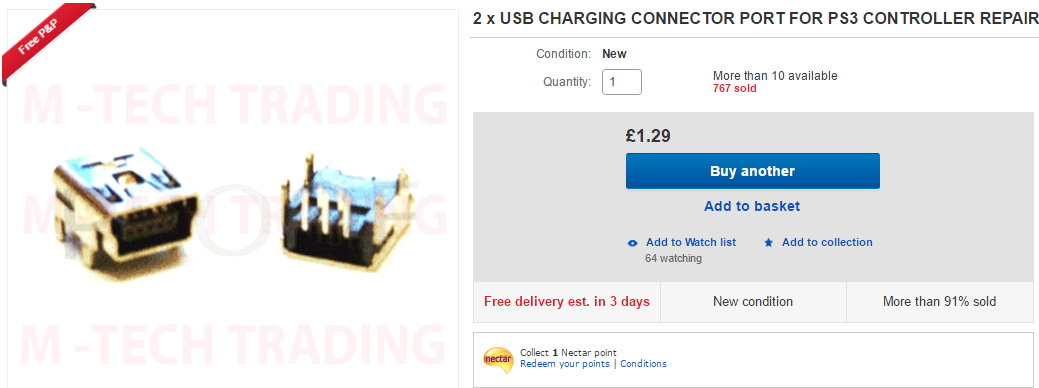
The USB socket on the fake controller had been damaged for ages although it didn’t seem to affect it in use. However, it was very loose and looked bad, so the next thing to do was replace it. These controllers use the once-common mini-USB connector, but they are still easy to find on eBay:

usb

The only problem I could see is that it is quite awkward to solder given the very small pins. However I thought it worth a try. I used my combined solder sucker / iron to remove the old socket and clean up the holes:

img_20161110_204439-copy

I’ve taken the board completely out of the casing here and you can see the vibration motors at the bottom.

The new connector fitted well and it proved easier than I thought to solder it in again. The key was to use very small amounts of solder and get the joint heated up properly. The pins were so small that they wicked the solder off the end of the iron and on to the pad with relatively little effort.

Putting it all back together I did some have problem with the ribbon cables connecting some of the buttons together, but after a bit of wiggling it all went back together and now works fine again. The connection is positive and firm as it should be now and it charges from the PS3.

So even a fake controller is worth repairing… and it looks like if I need any more controllers I will have to put up with fakes. Having said that for my purposes they are probably good enough!

Repairing a Dynamode SW240010-R switch

At church we have a combination of computer and audio gear which I am loosely responsible for maintaining, and I’ve written about some of this before. A couple of years ago we rationalised the racks by the computer and as part of this I put in a rack-mounted switch. I was on a budget so ended buying as new from ebay a ‘Dynamode SW240010-R‘.

This was inexpensive (which is why I bought it) and ‘as new’ from ebay. I was a bit wary of it because I wasn’t familiar with the brand but it looked OK and worked fine when installed.

However, a couple of weeks ago it became clear that the network wasn’t working, and one glance at the switch showed that it had failed. The main power light was flashing on and off weakly and none of the individal port lights were working. There wasn’t much time to consider a fix as it was important to get it going, so we bought a new one (TP Link this time). However I wanted to see if the Dynamode could be reapired. From recent experience, I have found that a lot of these failures are due to power supply problems – and specifically capacitors. Particularly in cheap equipment like this the capacitors are of poor quality and deform when they get warm over time. The actual solid state stuff is pretty robust these days and much less likely to fail. The voltages from the power supply wander all over the place and this causes very strange behaviour.

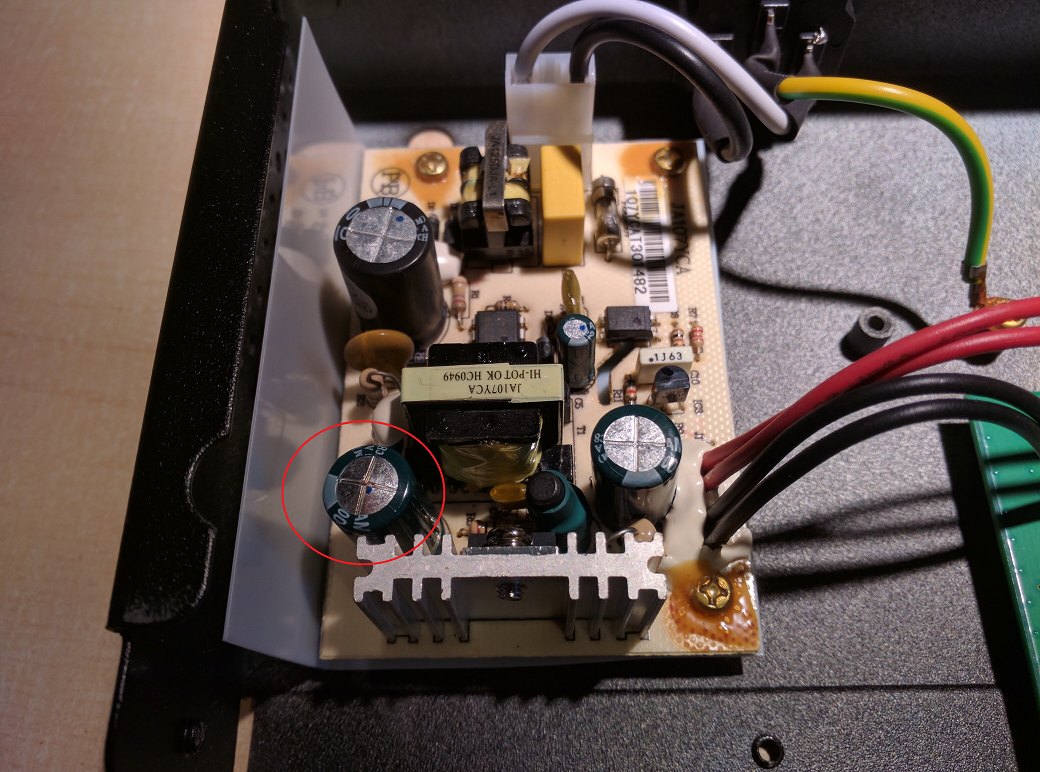
Opening up the unit as expected there was a small power supply board and quite a lot of fresh air:

psu

What was immediately obvious was that one of the capacitors was obviously bulging (circled in red above). It is a 10V 2200uF part, as is the other one on the right hand side. I removed the board, desoldered and replaced both of the capacitors, plugged it back in and held my breath…

Success! The switch now lights up properly and works fine again. Very pleasing to be able to get it going again. It is now surplus to requirements for church so will either keep as a spare or sell on. I am confident now that the replacement capacitors are much better quality than those I removed so hopefully the fault should not recur.

Changing the laser assembly on the Teac CD-P1450

The new laser assembly has now arrived, and it looks exactly as it should do – complete with Chinese labels. It is obviously a pattern part rather than a genuine Sanyo one but appears identical to the one I need to replace.

img_20150808_215705

There are a couple of issue to be aware of if you are attempting a similar repair. There are two variants of the SFP101N – one of them has 15 pins on the laser head, and the other has 16. I don’t know what the practical difference is, but you do need to make sure that you order the right one. The only way to do it is to count the pins which are on a flexible ribbon cable which plugs in to the main board.

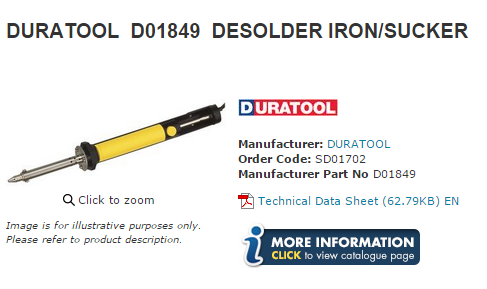
The other thing which is important, and which is not entirely clear in the packaging of the new unit is that there is a solder bridge on the laser head which needs to be removed. This is apparently something to do with antistatic precautions, although it is a strange thing. The only way to remove it properly is with a solder sucker. I’ve always had some trouble with desoldering, and in the past I’ve used a soldering iron and a spring loaded pump. This is always a bit fiddly and I’ve had variable success. However, I came across this in the CPC catalogue lately:

desoldering iron

This is a simple combination of a solder pump with a heating element on the tip – so you can heat up the joint and as soon as the solder has melted suck it up in one go.

Here is the new part with the solder bridge intact (circled in red):

img_20150808_215705

And here it is again with the solder bridge removed. It was simply a case of letting the iron warm up, pressing the tip down on the solder for a few seconds and pressing the button to release the plunger. The result was better than I had hoped – the bridge is completely removed leaving the two pads clean.

bridge-after

You can see the white connector block just to the right of the bridge – this is where the 16 pin ribbon cable plugs in.

Having got the new module prepared, I now need to install it. Getting the old one out was actually quite easy – the service manual gives details of all the screws etc and I was able to remove the large plastic tray assembly which contains the laser. The awkward bit was disconnecting a few of the connector blocks and the flat ribbon cable although generally with a bit of gentle pressure these came out.

The second picture shows the laser mounted in a plastic housing which fits in to the bottom of the tray itself.

Replacing it was a pretty simple matter, just a question of removing the two screws that can be seen above and then pulling the mount out of the the housing by flicking past a few clips. Then there were some rubber boots to come off and then everything put back into place. It was actually pretty easy and I then put the whole thing back together again.

I then took a deep breath, turned the power on and put a disc in…

Success! The disc reads and plays perfectly, and after a long period of testing I’m pretty confident that the problem is now solved. Needless to say I’m pretty chuffed – I’ve repaired the player at minimal cost and in a much shorter time than I expected. If I had had to buy new I would have had to spend at least £180 and I’m very pleased to have avoided this. Also of course… I have enjoyed the adventure of fixing it.